GUIDE · 06
CONTROLS & KEYBINDS
6K FLOOR · MOUSE FIELD · STEAM INPUT
In Falsus plays Floor notes on a one-handed 6K keyboard scheme and everything in the aerial Field on the mouse. The defaults are playable, but the game expects you to rebind — here is the layout, the remap flow, the setups the community converged on, and where controllers and Steam Deck stand today.
Default keyboard layout
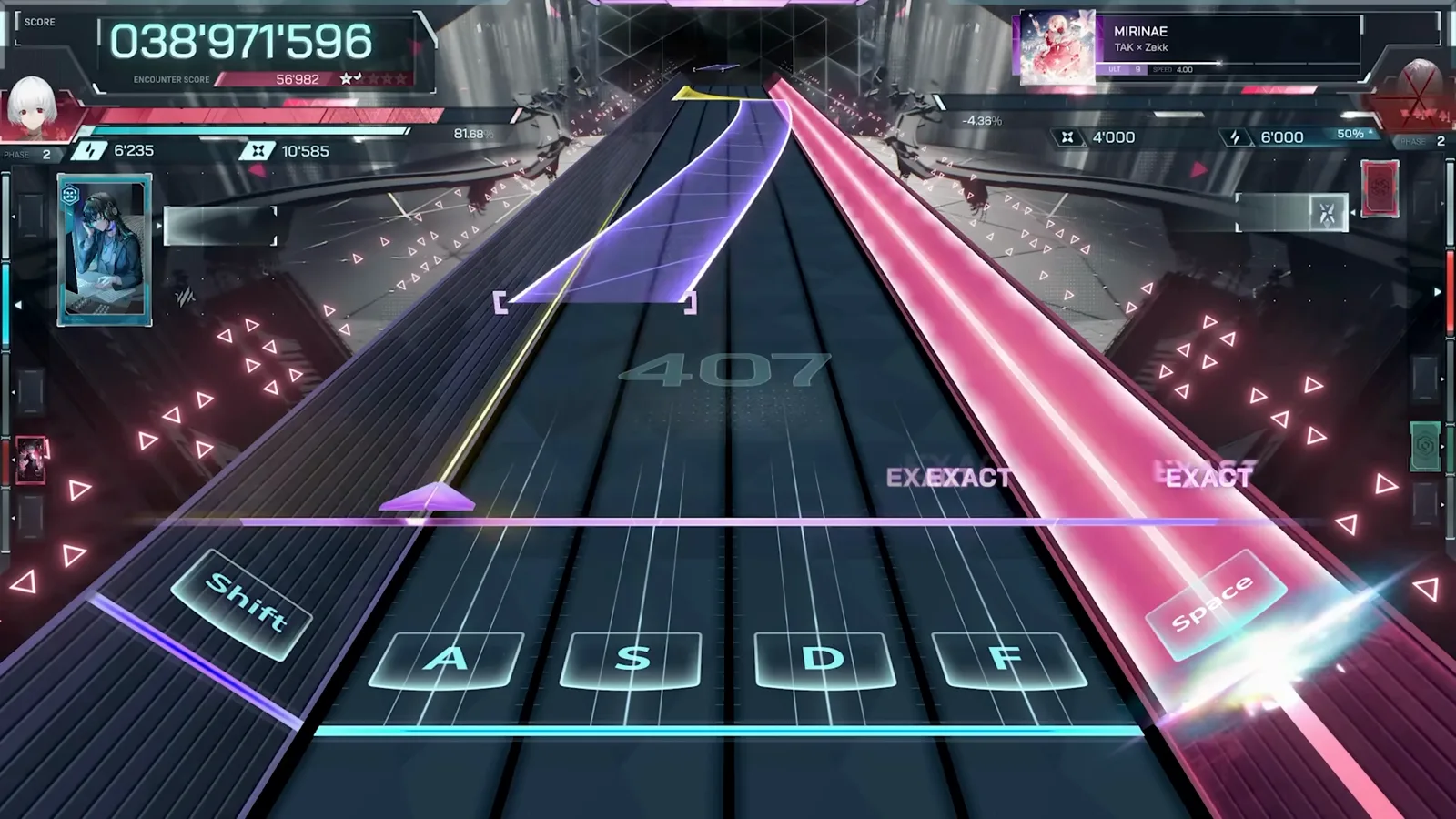
LSHIFT · A · S · D · F · SPACEFloor notes fall down six lanes — four middle lanes plus two side lanes — and each lane maps to one key. The default binding is one-handed 6K: LShift and Space take the side lanes, while A, S, D and F cover the middle lanes.
LShift
Side lane 1
A
Middle 1
S
Middle 2
D
Middle 3
F
Middle 4
Space
Side lane 2
You never have to memorize the mapping: every active lane shows its key prompt at the judgement line, so the letter on the lane is the key to press.
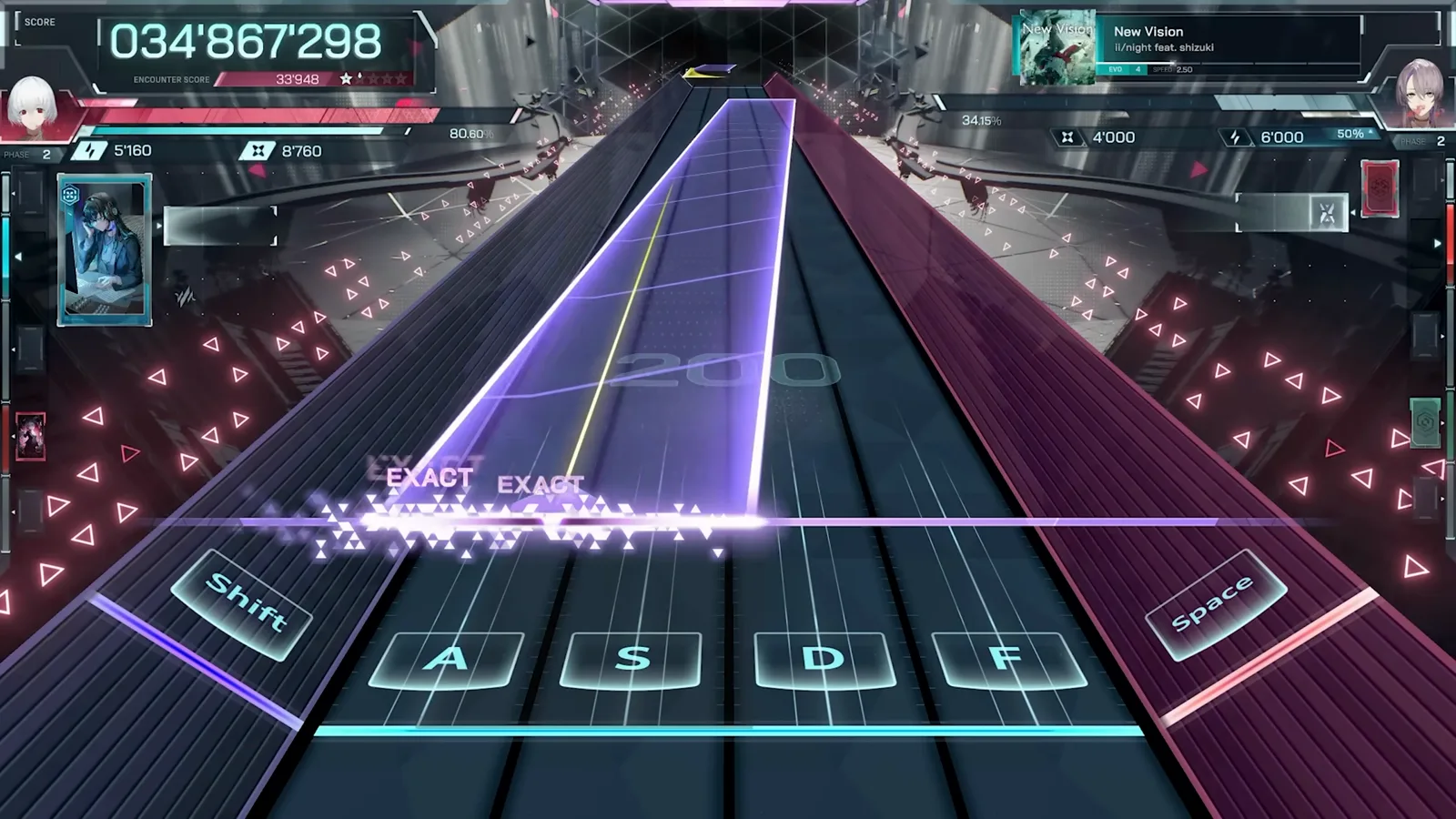
Hold notes use the same keys — press and hold for the note's duration. In Falsus holds have no release timing, so letting go a little late costs nothing.
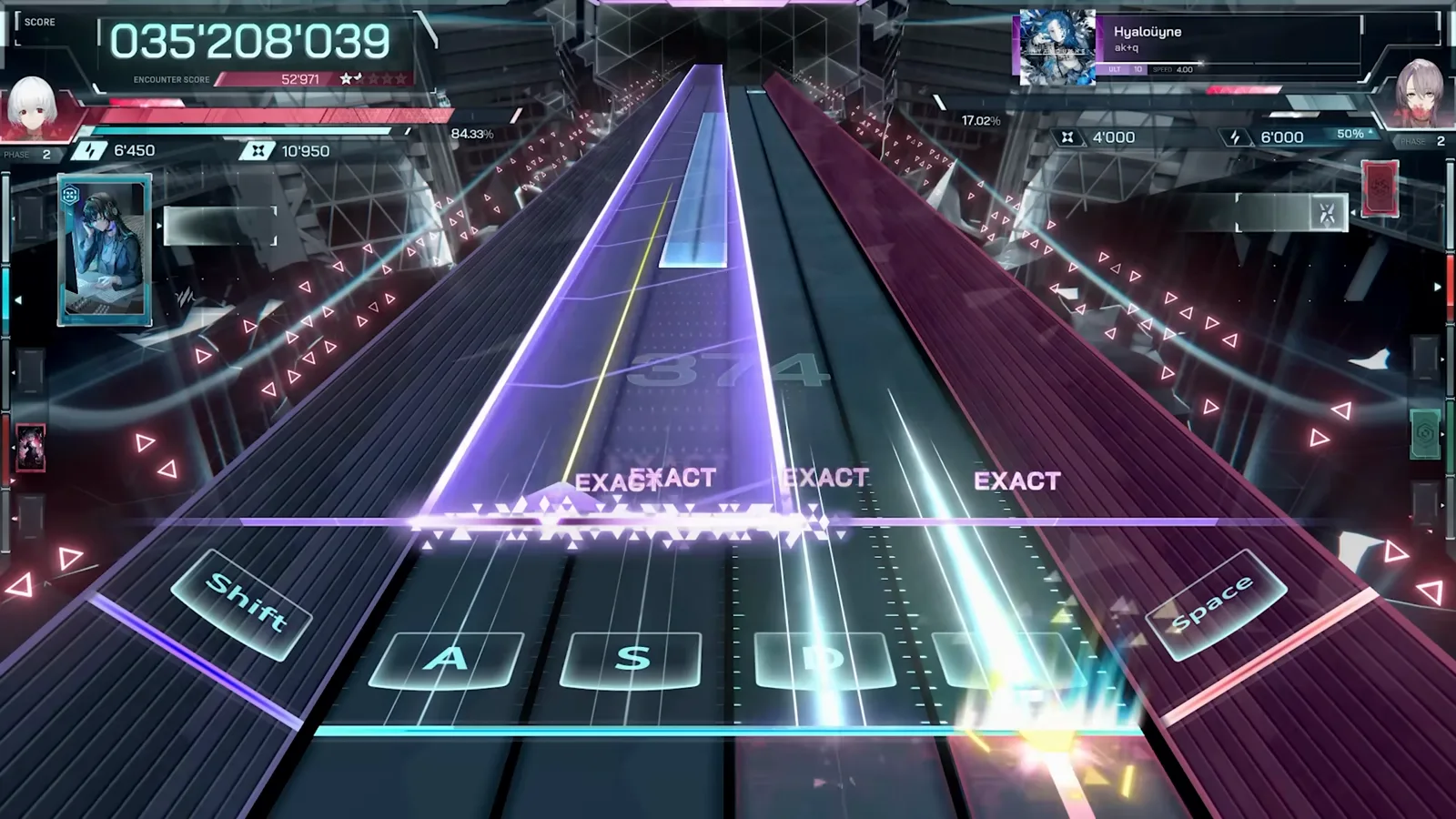
How many lanes light up depends on difficulty: MIN charts use 4 keys, EVO uses 5, and ULT/FBD use all six. The full tier breakdown — and what each one expects from your hands — is in our → Rhythm Tips
How to rebind keys
SETTINGS · CONTROLSThe lane keybinding can be changed in the settings, and rebinding is expected rather than exotic — the default one-handed scheme does not fit every hand, keyboard or desk. Ten minutes of experimenting beats hours of fighting a layout that was never yours.
- 1
Open the settings
From the title screen or the pause menu, open Settings and find the key-binding / controls section. - 2
Rebind each lane
Select the lane you want to move and press the new key. Repeat for all six lanes — LShift, A, S, D, F and Space are just the defaults. - 3
Test on an easy chart
Run a MIN-difficulty chart so you can check the new layout without pressure; the on-lane key prompts make the transition painless. - 4
Iterate one key at a time
Change a single binding, replay the same chart, and judge. Within a few runs you will know whether a layout works for your hands.
Community setups worth trying
SPLIT · THUMB · TWO-HANDThe Steam rebind threads converged on a handful of layouts. None of them is 'correct' — the right setup is the one your wrists survive.
Two-hand spread
Move the middle lanes onto both hands like a classic 4K/6K layout — index fingers on the center lanes, pinkies covering the side lanes. Familiar if you come from other rhythm games.
Thumb lane
Keep one side lane on Space (or a thumb-cluster key) so five fingers cover the rest — the 'sixth finger' trick from the ergonomic-keyboard thread.
Split / ergo boards
On split and columnar keyboards, spread the lanes across both halves and bind Alt variants so modifiers sit where the board designer intended, not where a standard row assumes.
The full version — including the anti-ghosting hardware check for 'keys not registering' — is in our keybinds article: → Keybinds & best keyboard setup
Mouse & Field notes
FIELD · FLICK · CURVEAbove the Floor lanes sits the Field — an aerial layer with its own higher judgement line, driven entirely by the mouse. Field notes ask you to keep the cursor inside the purple zone for the note's duration. The zone turns red when the cursor leaves it, and too much time outside makes the field lock red and stop accepting inputs for a moment.
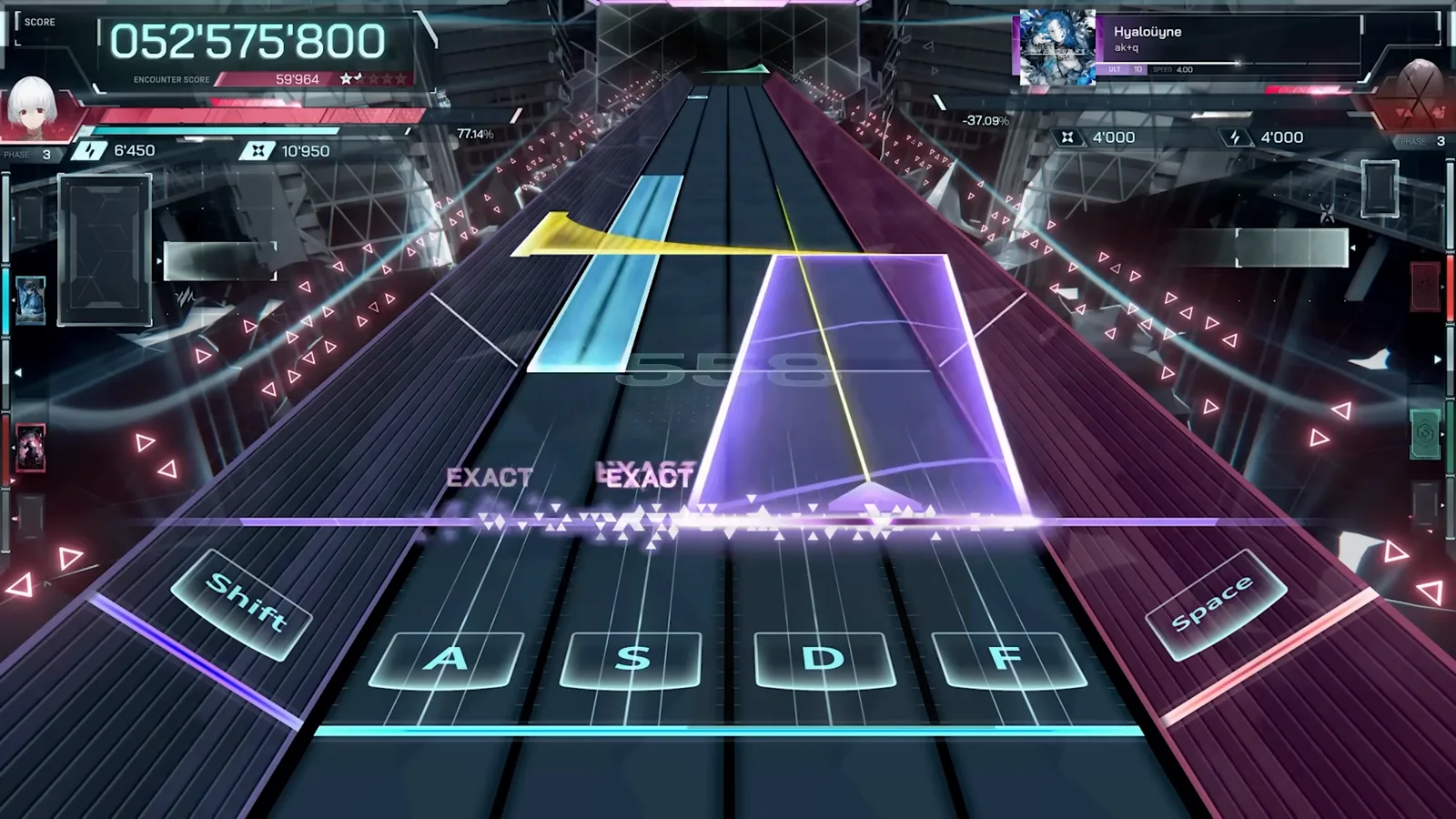
Flick notes are the Field's single-hit notes: flick the mouse left for yellow, right for green. Your movement only has to overlap the note's horizontal length — you do not need to cover its full width.
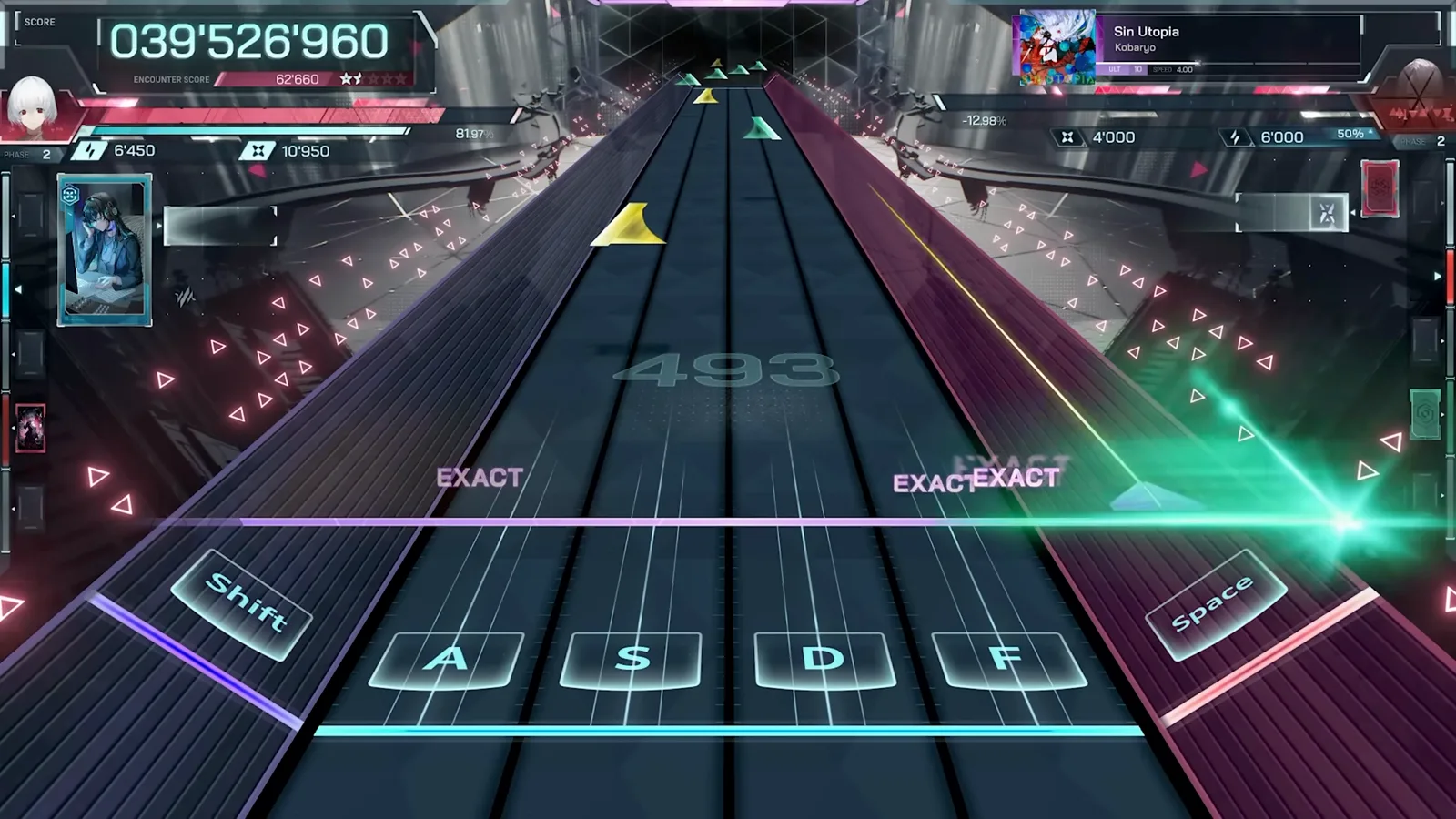
Long Field notes curve across the aerial space, so trace the path with the cursor rather than holding still. If the mouse feels slippery, lower the sensitivity; but keep the Floor lanes on keys — mouse timing cannot match key switches for judgement accuracy.
Controller & Steam Deck
STEAM INPUT · PROTONThere is no official controller support in the current build: the game is designed around keyboard lanes plus mouse Field input, and settings offer no native gamepad bindings. What works today is Steam Input — map pad buttons to the lane keys and a stick or trackpad to the mouse for the Field. It is serviceable for casual play, but buttons are not key switches; for high-difficulty charts, keyboard stays the recommendation.
Steam Deck runs the game through Proton with the same Steam Input mapping, plus wired audio and a per-device offset calibration. Step-by-step mapping and Deck caveats: → Controller & Steam Deck guide
CONTROLS FAQ
INPUTS · HARDWAREWhat are the default controls in In Falsus?
A one-handed 6K keyboard scheme: LShift, A, S, D, F and Space cover the six Floor lanes (two side lanes, four middle lanes), while the mouse handles the Field — holding the cursor inside Field zones and flicking left or right for Flick notes.
Can you rebind keys in In Falsus?
Yes. The lane keybinding can be changed in the settings, and the community treats rebinding as expected — the default one-handed layout does not suit every hand or keyboard.
Does In Falsus have controller support?
Not natively in the current build. The workaround is Steam Input, which maps gamepad buttons to keyboard and mouse actions; it works for casual play, but keyboard remains the recommended input for harder charts.
Why do some keys not register when I press several at once?
That is keyboard ghosting, not the game: budget membrane boards share circuitry between keys and drop simultaneous presses. A keyboard with n-key rollover (NKRO) registers every key — most mechanical boards qualify. Also check macro tools, IME shortcuts and overlay hotkeys that can intercept inputs.