GUIDE // FIRST DIVE
In Falsus Beginner Guide
HOW TO PLAY // DEMO v0.3.x
Everything a first-time Diver needs: dial in settings before your first song, learn the two-layer note system the tutorial teaches one screen at a time, keep your MSS HP alive, and understand what the Hub and CONNECT card loadouts actually do.
TL;DR
- ▸Open OPTIONS → GAMEPLAY & UI first: Track Speed defaults to 2.00, Audio Offset to 0 — if your hits feel late or early, adjust Audio Offset before anything else.
- ▸In Falsus plays on two layers at once: steer the Cursor through Fields and Flick notes with your mouse up top, hit Tap/Hold notes on the keyboard below.
- ▸Missing a note costs 1 MSS HP and hits build it back — keep HP at 10 or above to clear the song.
- ▸The 'Prioritize Scenario vs Challenge Rhythm Game' choice only changes the initial tutorial. It locks nothing.
SOURCE FOOTAGE
Every screenshot on this page comes from justonegamr's full In Falsus demo playthrough on PC, and every fact was verified against what the game itself shows on screen. Each image deep-links to the exact timestamp it was captured from.
Setup before your first Dive
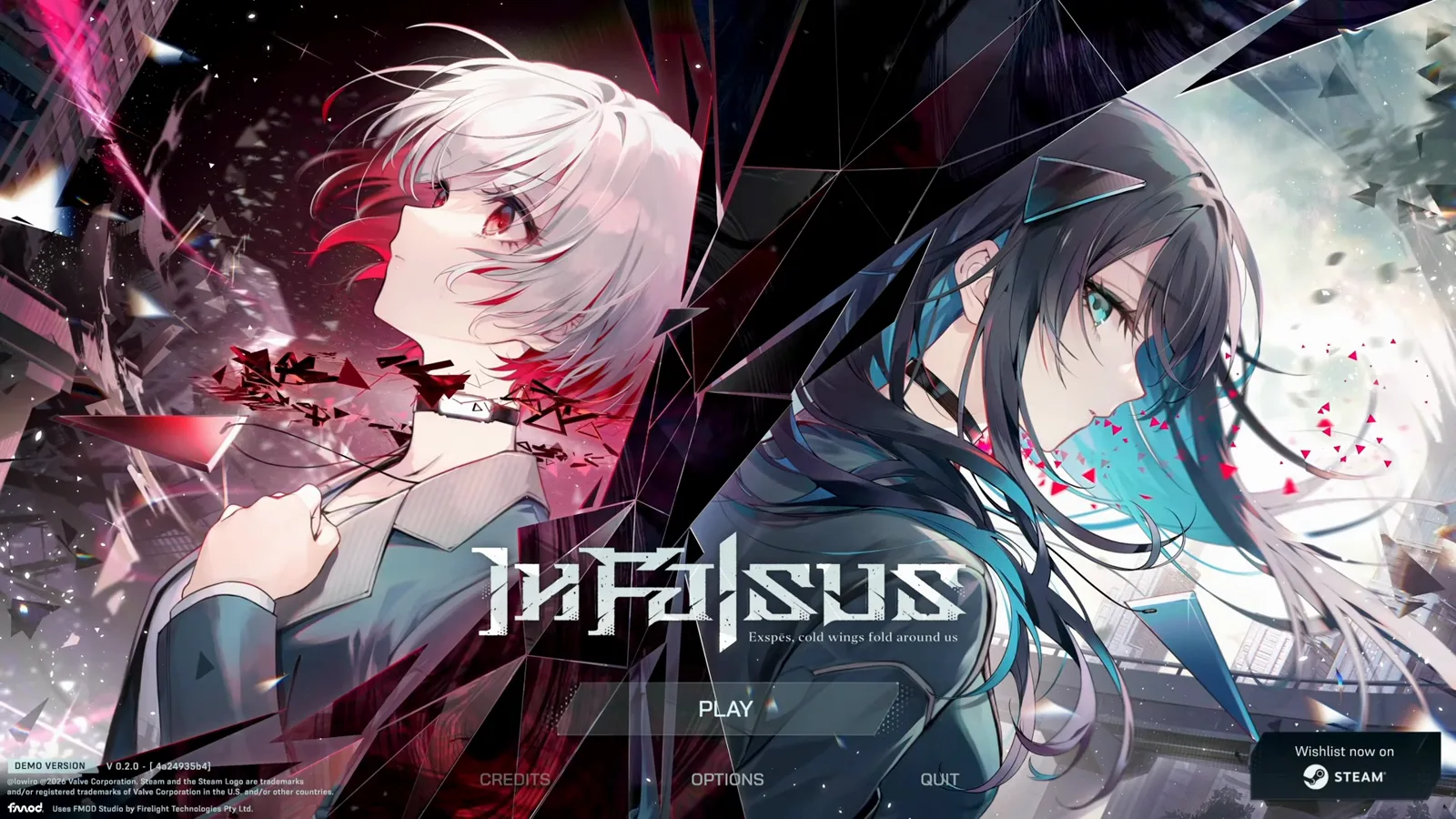
OPTIONS // 2 MINUTESThe demo drops you onto the title screen with PLAY, OPTIONS and QUIT. Spend two minutes in OPTIONS before your first song — In Falsus reads your timing raw, so a clean baseline matters more here than in most rhythm games.
- 1
Set Note Behavior before you play
OPTIONS → GAMEPLAY & UI → Note Behavior holds the two settings that decide how the game feels: Track Speed (default 2.00) and Audio Offset (default 0). If your EXACT hits keep landing late or early, nudge Audio Offset in small steps. Flipped Gameplay mirrors the lanes, and Gameplay Keybind Indicator prints the key letters on the lanes — leave it on while learning.
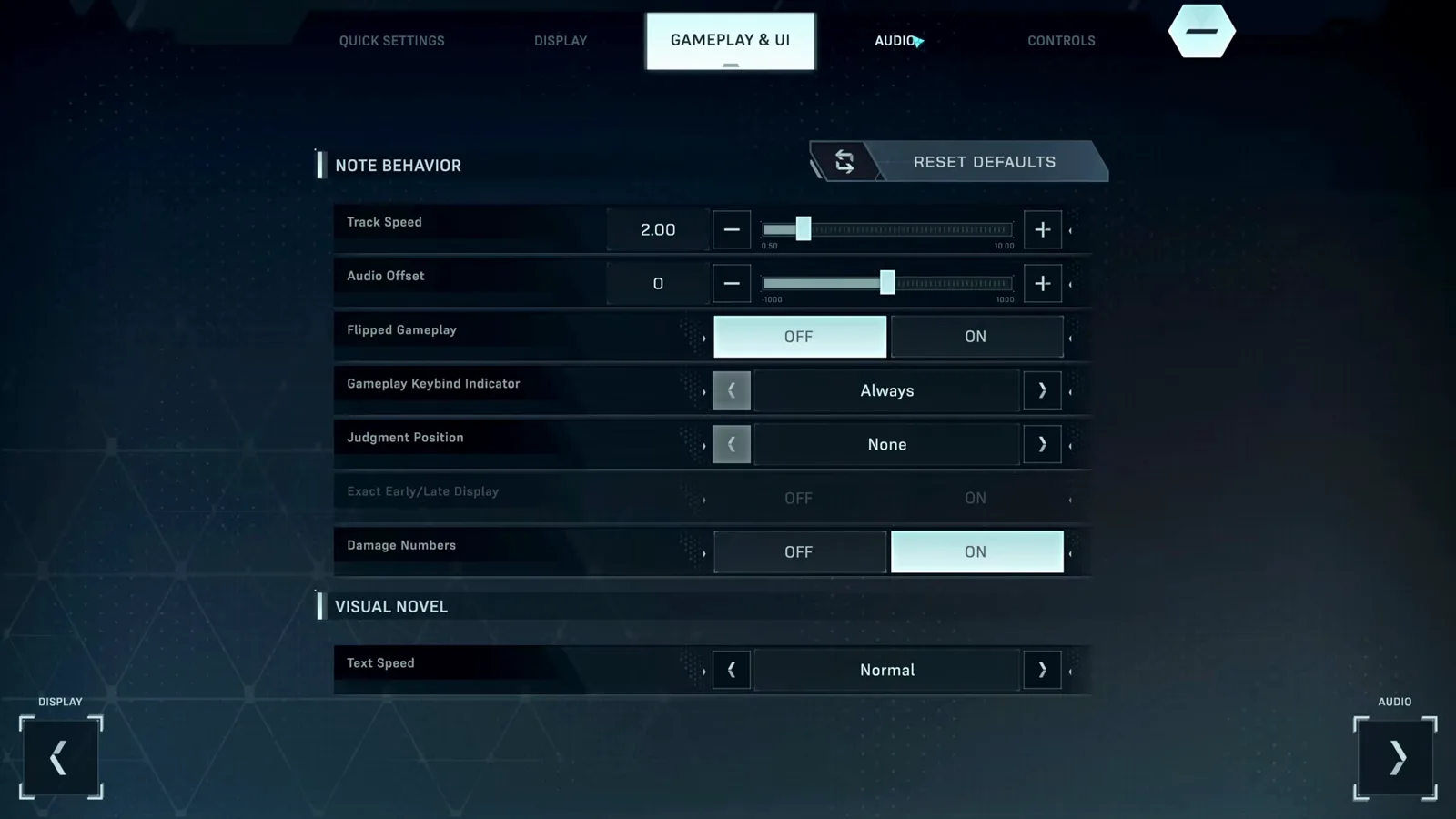
Track Speed 2.00 and Audio Offset 0 are the defaults — adjust offset here if hits feel off. · Footage: justonegamr ↗ - 2
Learn the five keys plus two side keys
The CONTROLS tab shows the default layout: LeftShift on the far-left side lane, A S D F on the middle lanes, Space on the far-right side lane, and Mouse Sensitivity (default 1.00) for the Cursor. Your keyboard hand covers A through F; the side lanes are reached with Shift and Space.
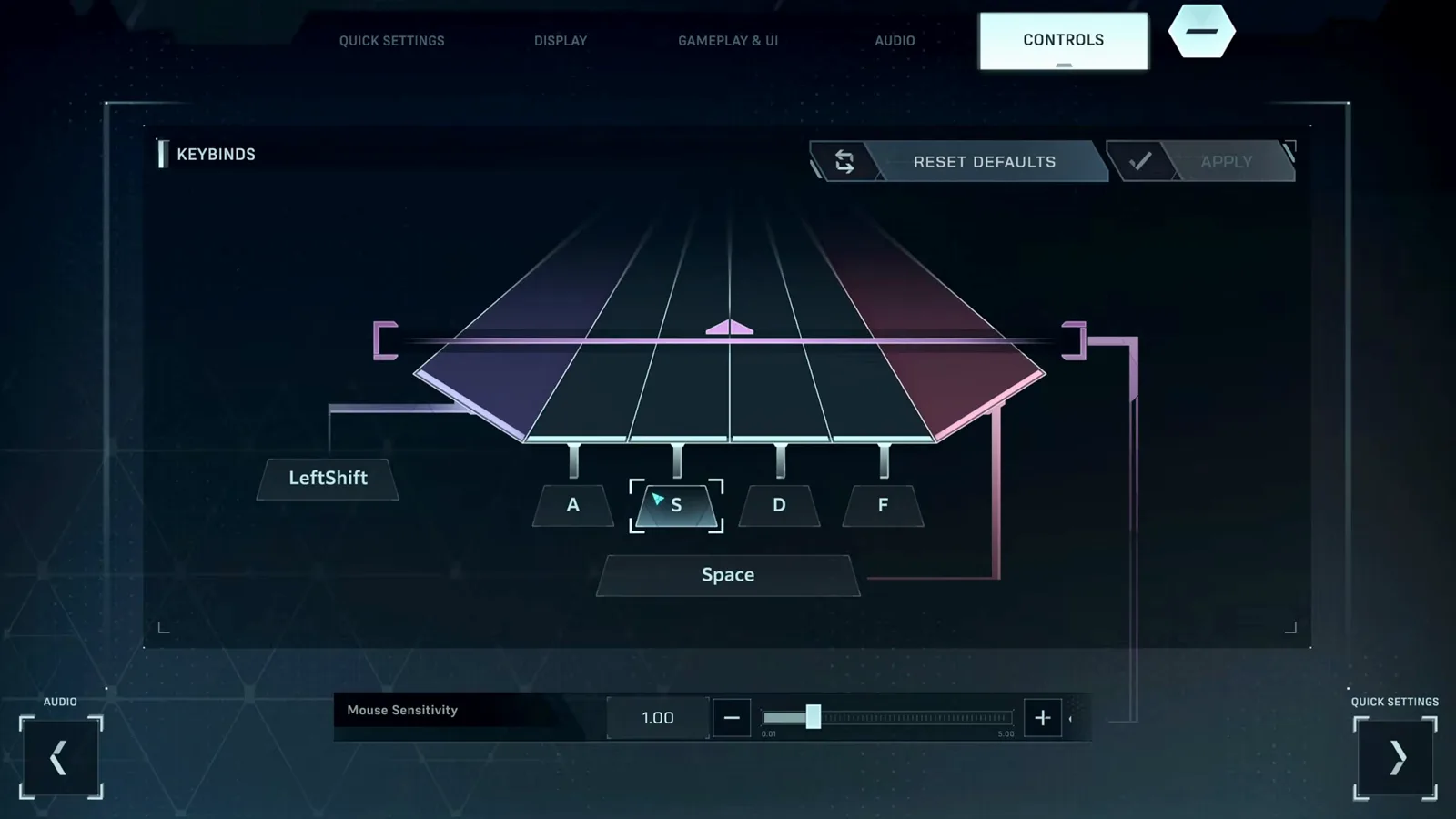
The default layout: five keyboard keys down the middle lanes, Shift and Space on the side lanes, mouse for the Cursor. · Footage: justonegamr ↗
Scenario or Rhythm Game first?
- 3
Pick Scenario or Rhythm Game priority
On a fresh save the game asks you to choose: Prioritize Scenario or Challenge Rhythm Game. Read the fine print — the prompt states this option only affects the initial tutorial and does not limit your game experience. Nothing is locked either way, so pick the pace you prefer.
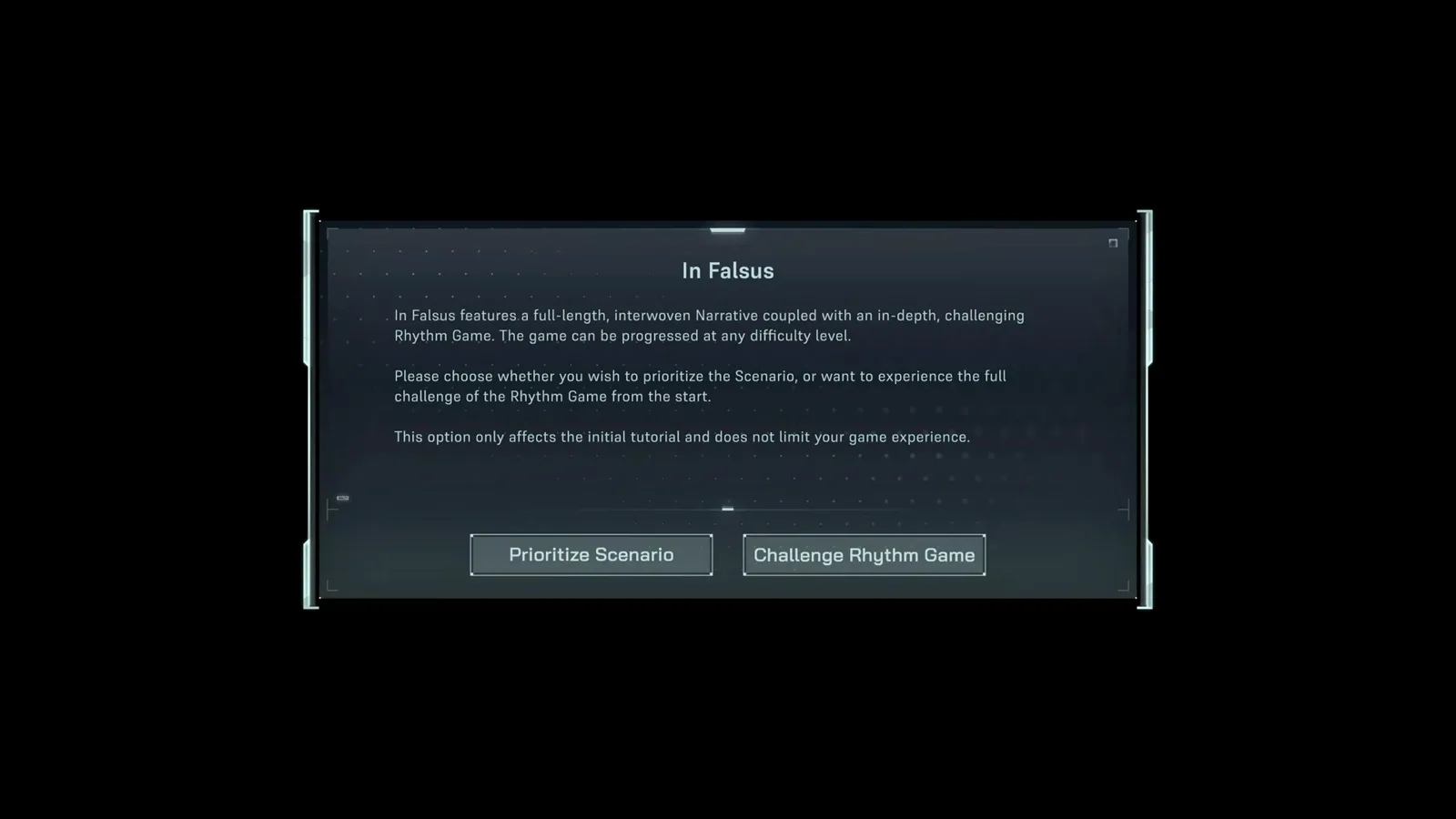
This choice restyles the tutorial only — no content is locked behind either button. · Footage: justonegamr ↗
The tutorial, frame by frame
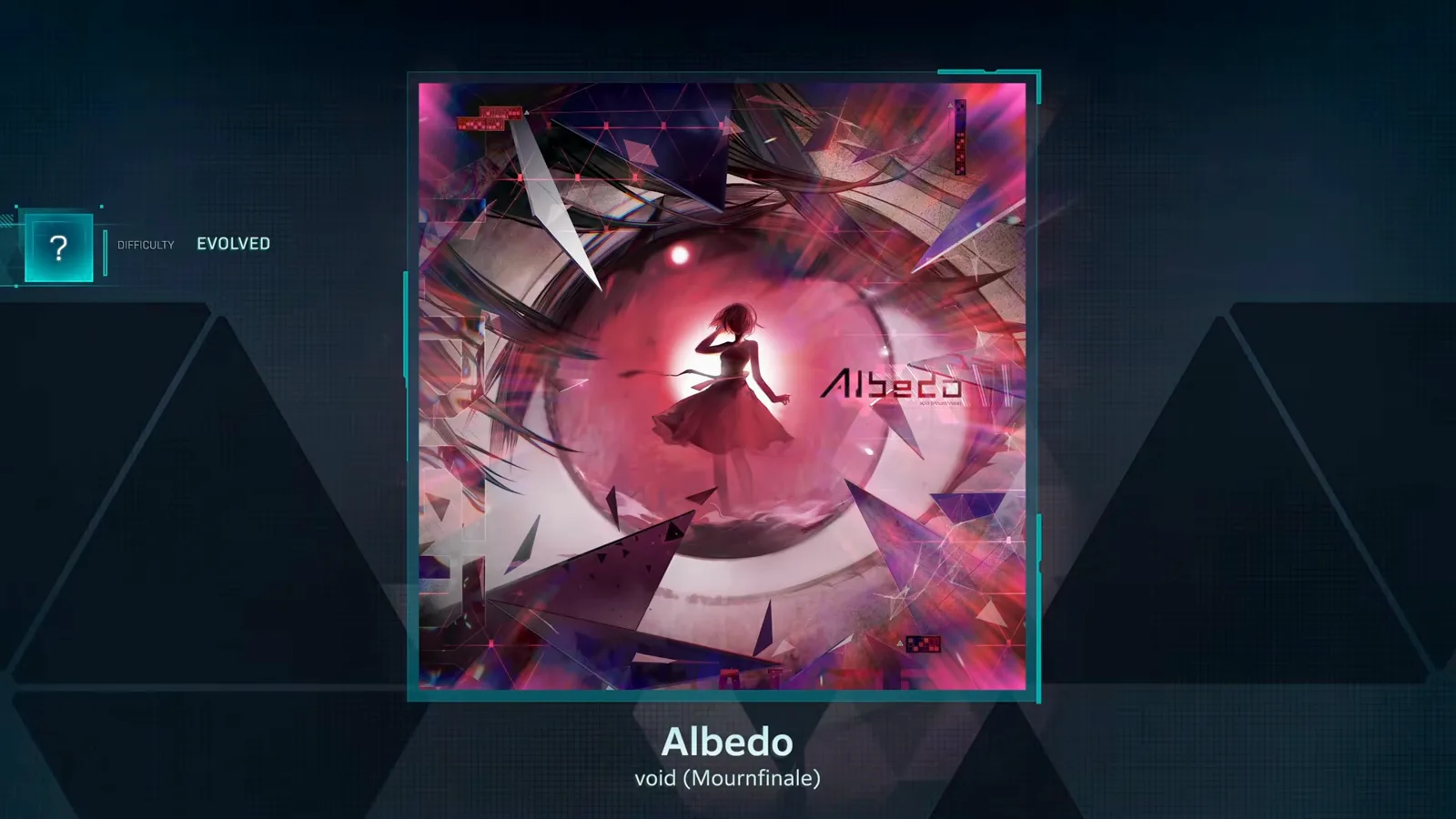
ALBEDO // VOID (MOURNFINALE)The tutorial song is Albedo by void (Mournfinale). It introduces one mechanic per screen — below is every lesson in the exact order the game teaches them, so you can follow along or review anything you skipped.
- 4
Start the tutorial and copy the hand placement
Select Albedo and press Shift + Space to start. The game overlays translucent hands on the track to show the intended posture: fingers resting on A S D F with Shift and Space in reach, mouse hand free to roam the upper track.
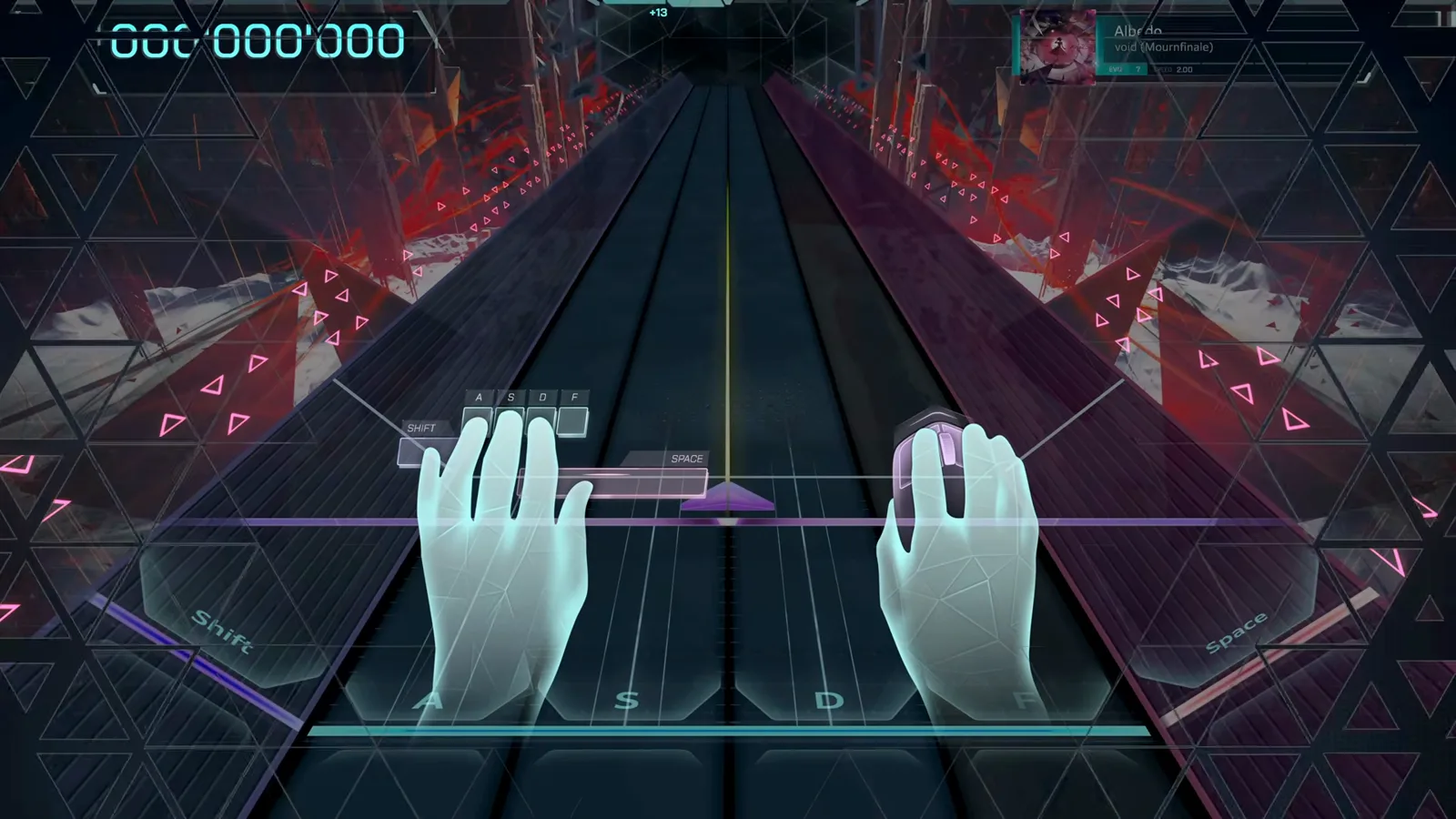
The game literally shows you where your hands go before the first note falls. · Footage: justonegamr ↗ - 5
Steer the Cursor with the mouse
'Control the Cursor by moving your mouse left and right.' The Cursor rides the upper half of the track on its own line — there is no clicking involved, only lateral movement.
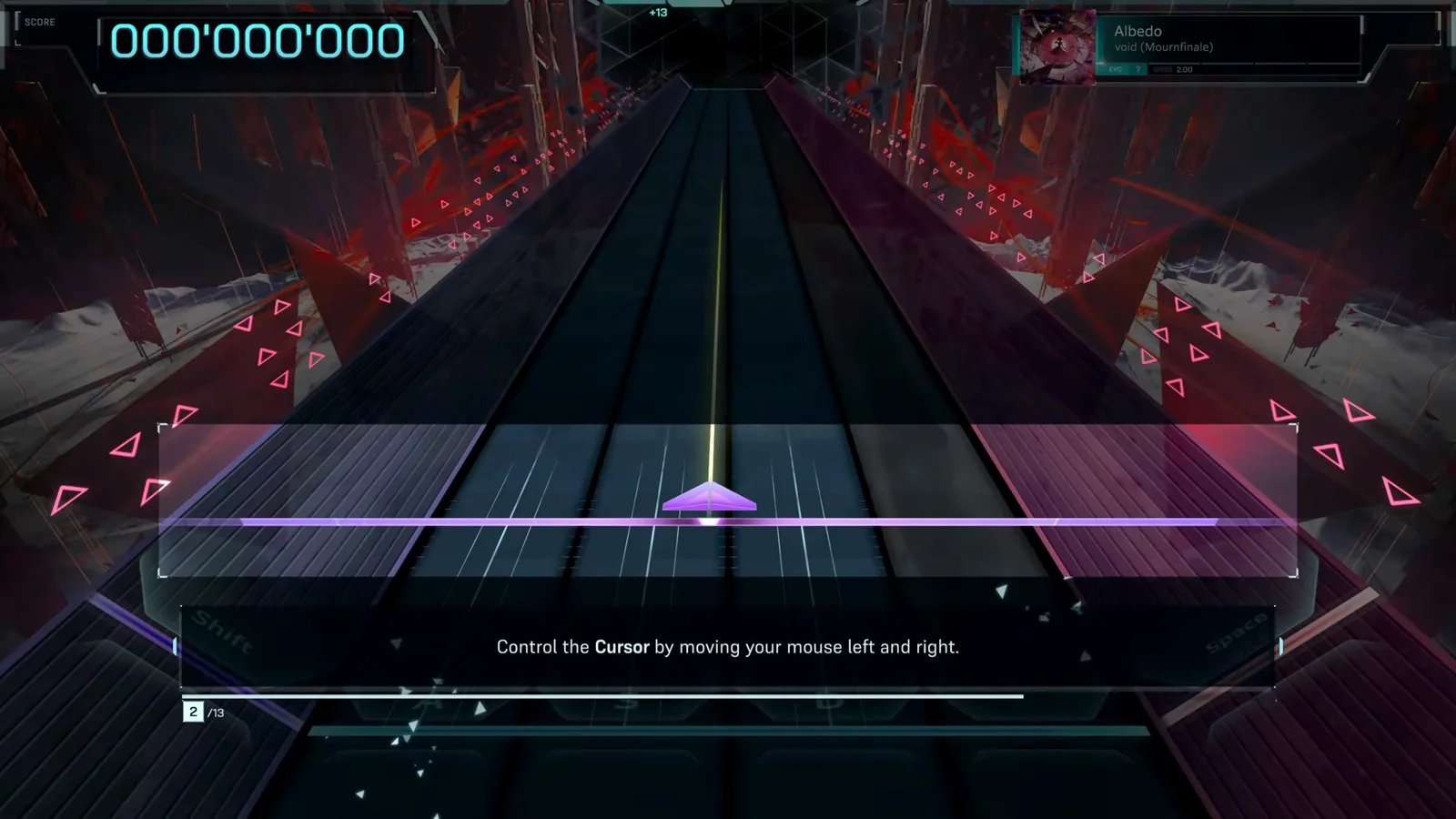
Lesson one: the Cursor answers to lateral mouse movement only. · Footage: justonegamr ↗ - 6
Sweep through Flick notes
'As Flick notes approach, move the cursor through the note, starting at the small end and ending past the large end.' Flicks are directional: enter at the tapered end and carry the motion through, like a stroke rather than a tap.
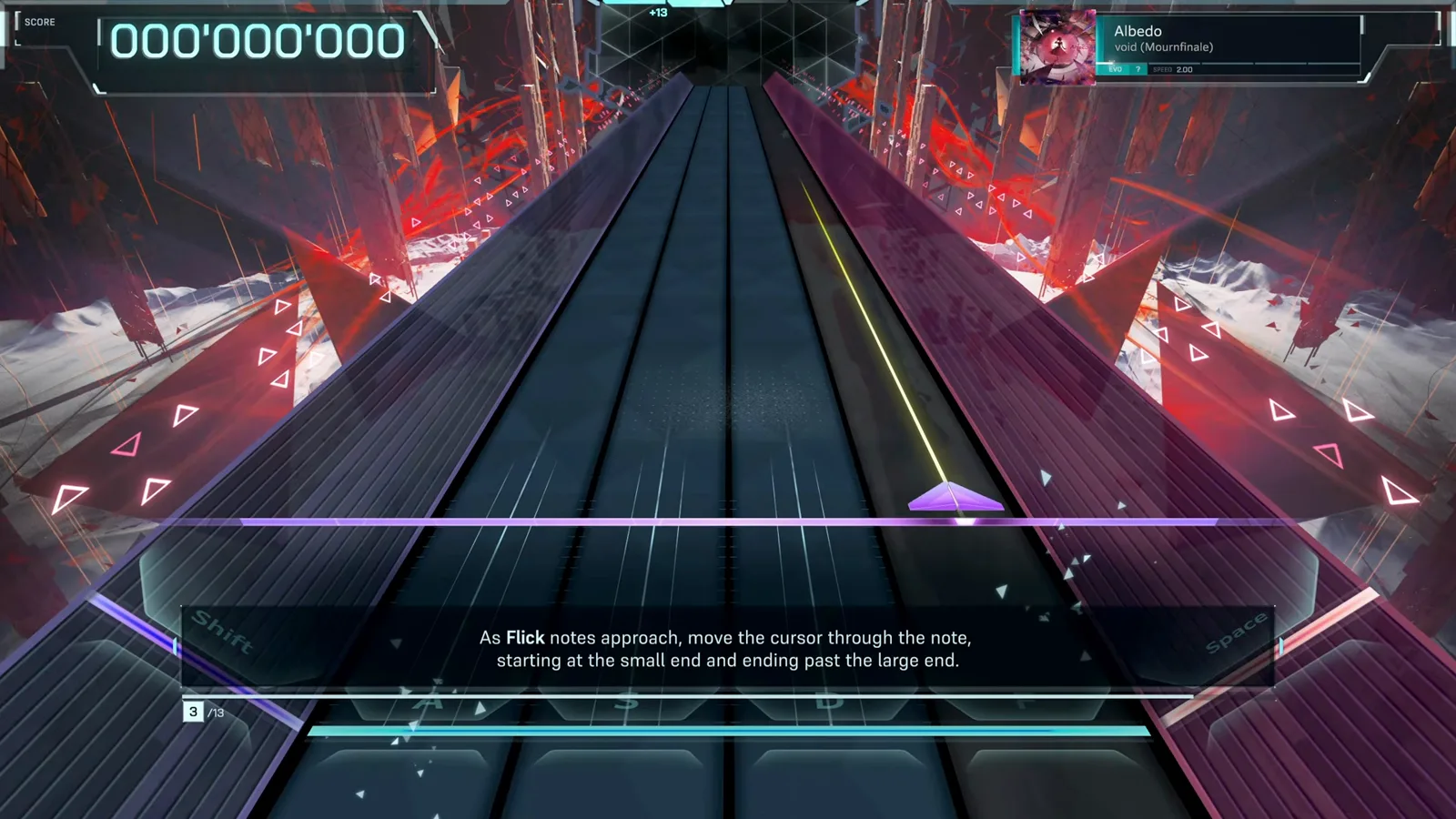
Flicks are directional sweeps: in at the small end, out past the large end. · Footage: justonegamr ↗ - 7
Keep the Cursor inside Fields
'Above, the cursor must be kept inside Fields until they reach the end.' Fields are the glowing zones on the upper track. Slide in early, stay inside until the Field ends, and only then leave — drifting out midway breaks it.
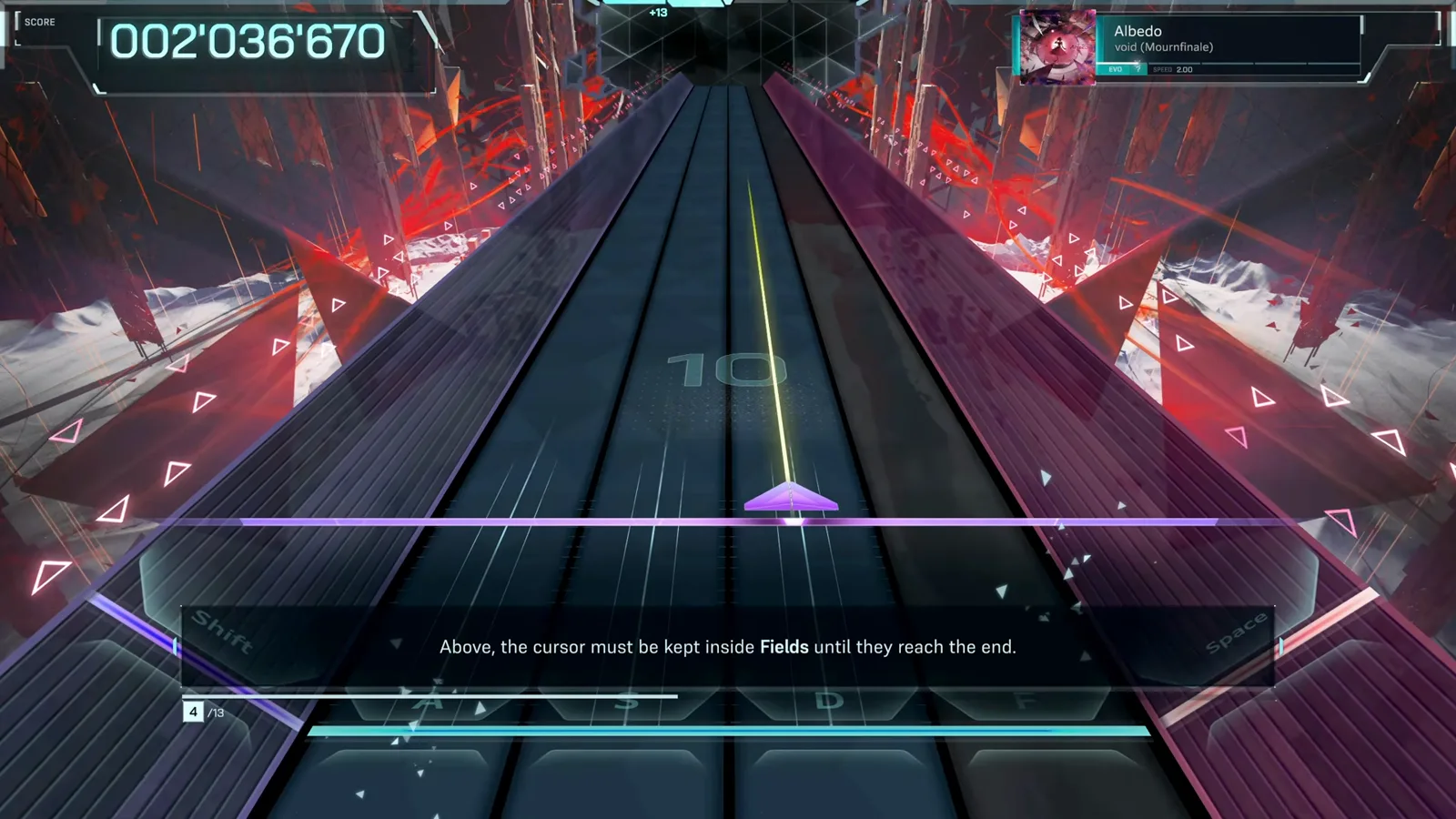
Fields are endurance checks for your mouse hand — stay inside the glow until it ends. · Footage: justonegamr ↗ - 8
Hit lower notes on the keyboard
'Below, notes are hit using your keyboard, utilizing the keys displayed.' The key letters are printed directly on the lanes — read the lane, not just the note, until the mapping is muscle memory.
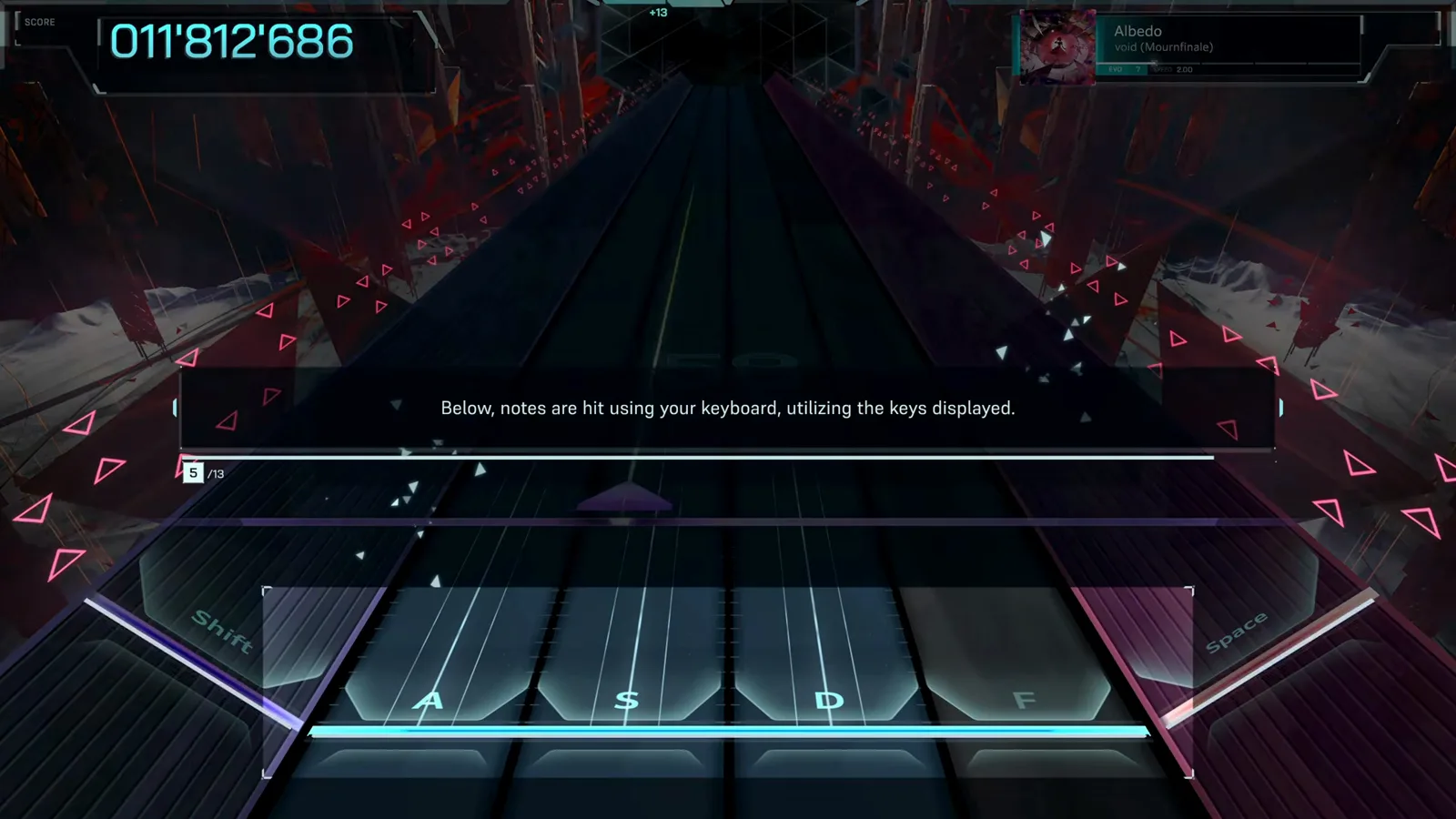
The lower track is keyboard territory, and the lanes tell you exactly which key to press. · Footage: justonegamr ↗ - 9
Hold Hold notes to the very end
'For Hold notes, maintain holding down the key until it reaches the end.' Releasing early breaks the Hold. The lane stays lit for the full duration — let go only when the tail clears the line.
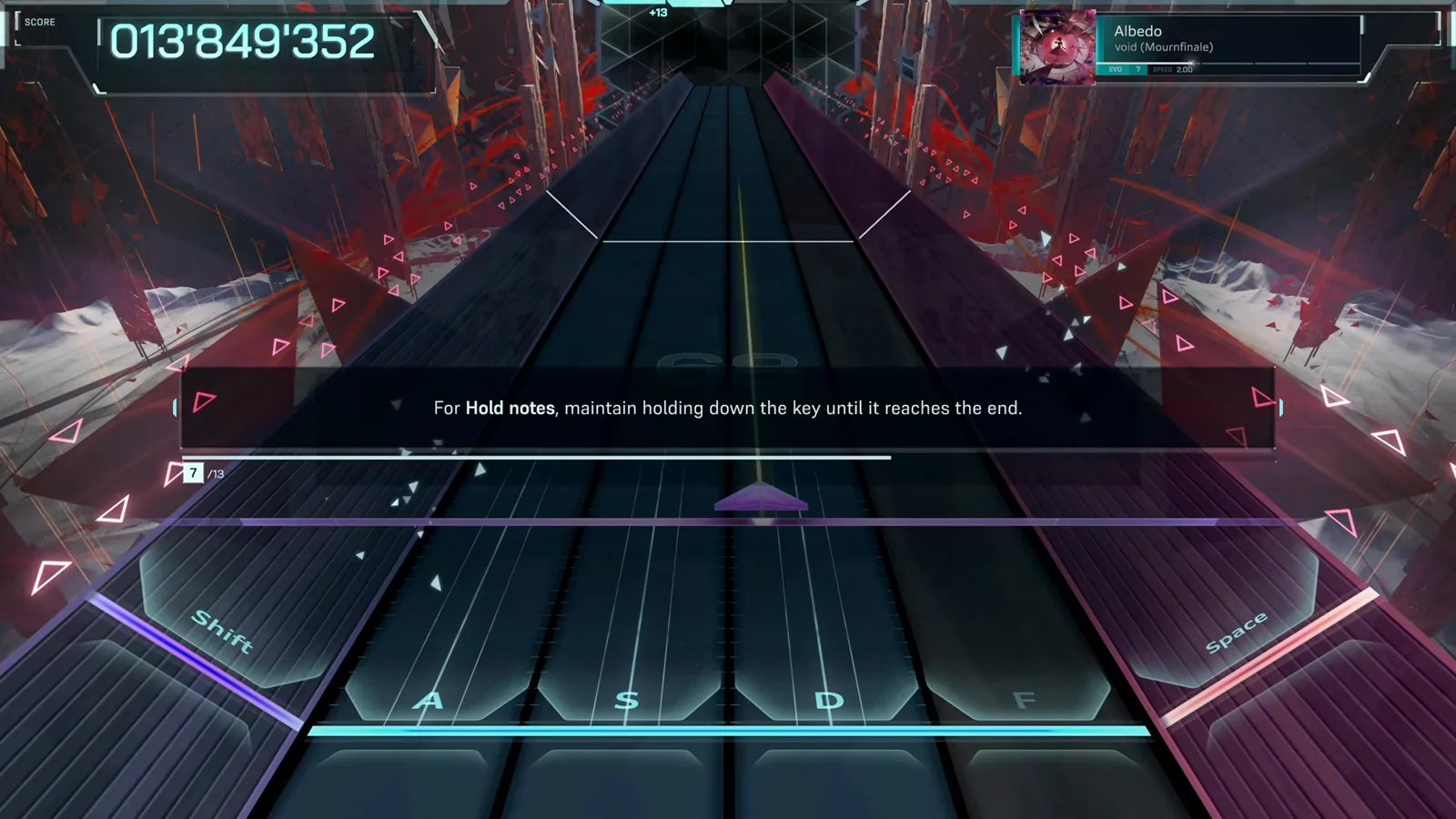
Hold notes punish early releases — keep the key down until the tail clears the line. · Footage: justonegamr ↗ - 10
Watch the two far side lanes
'Notes can also approach down the two side lanes on the far left and right.' Those outer lanes are why the layout includes LeftShift and Space — when a note travels down the edge, use the side key instead of reaching across with A or F.
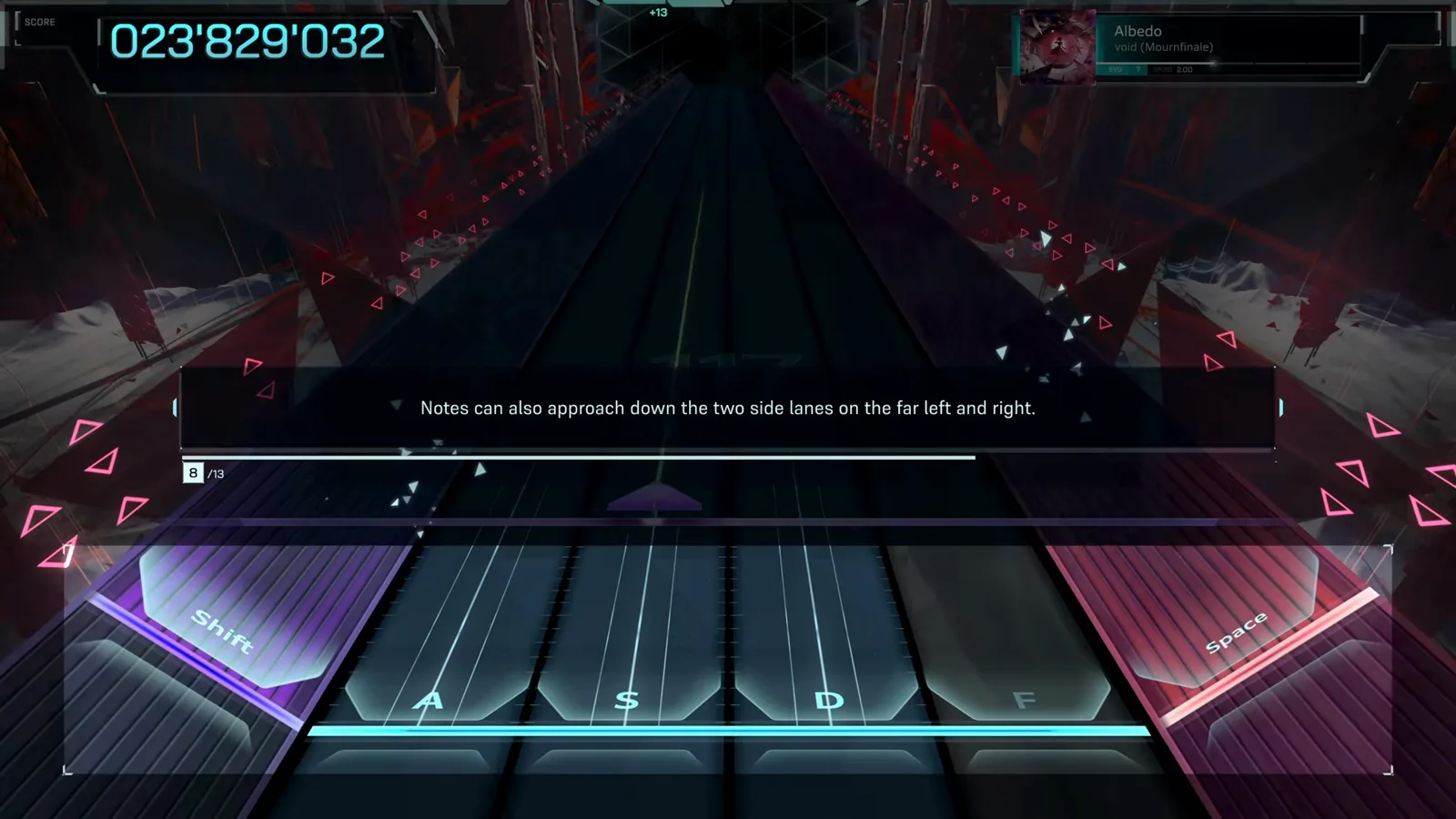
Edge lanes belong to LeftShift and Space — don't reach across the keyboard for them. · Footage: justonegamr ↗ - 11
Protect your MSS HP
'Missing a note reduces your MSS HP by 1. Build it back up by hitting notes successfully. Clear the song by keeping it at 10 or above.' One bad stretch won't end the run — but a collapse near the end will, so stabilize before chasing EXACTs.
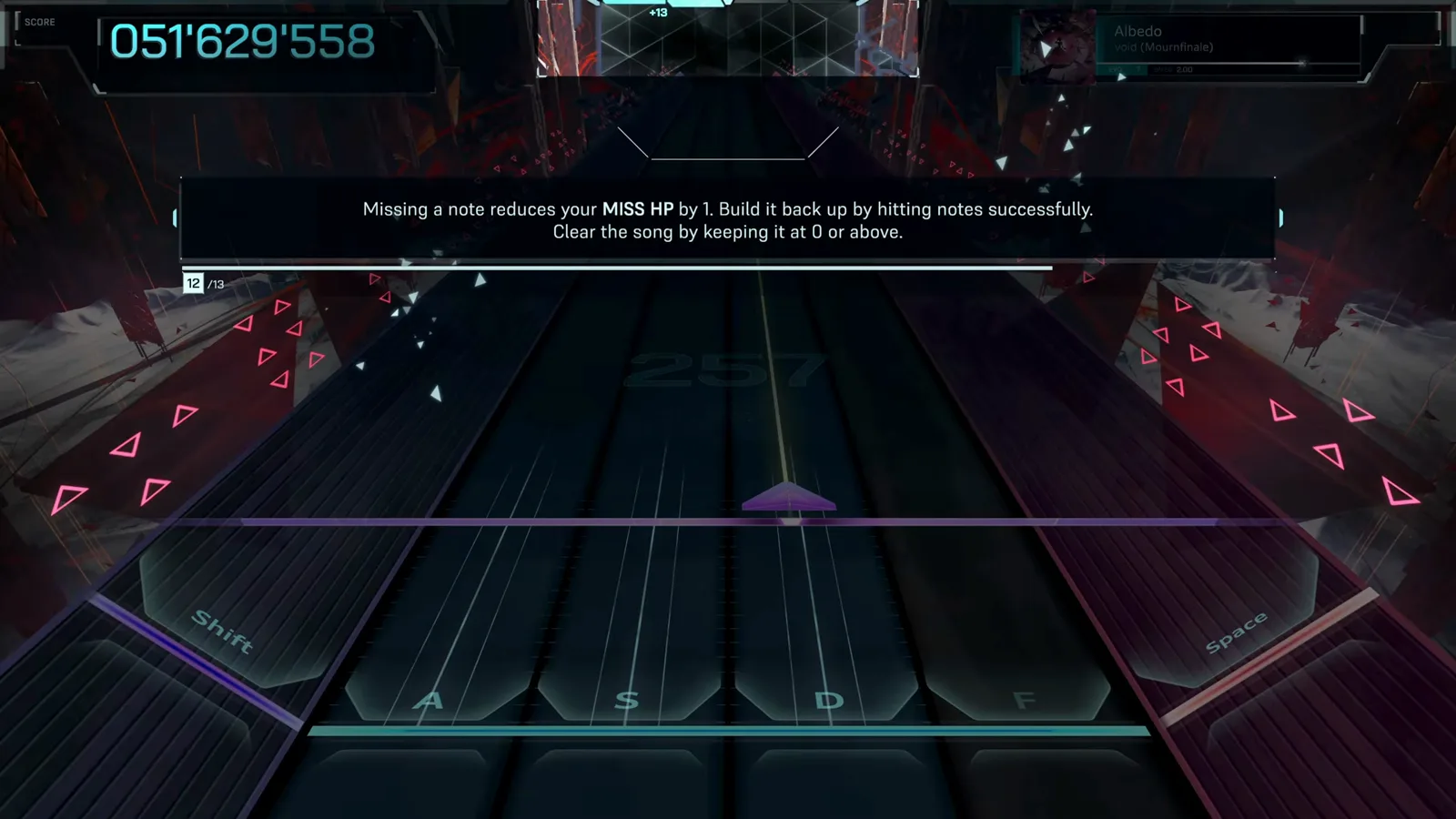
The survival rule: misses cost 1 HP, hits heal, and 10 HP is the clear threshold. · Footage: justonegamr ↗
After the tutorial: the Hub and CONNECT
BASE // LOADOUT- 12
Return to the Hub
After the tutorial, Nia welcomes you to the Hub — your home base between dives. MUSIC PLAY opens free song selection, SCENARIO continues the story of The First Lie, and REPLAY TUTORIAL sits in the corner if you ever want a refresher.
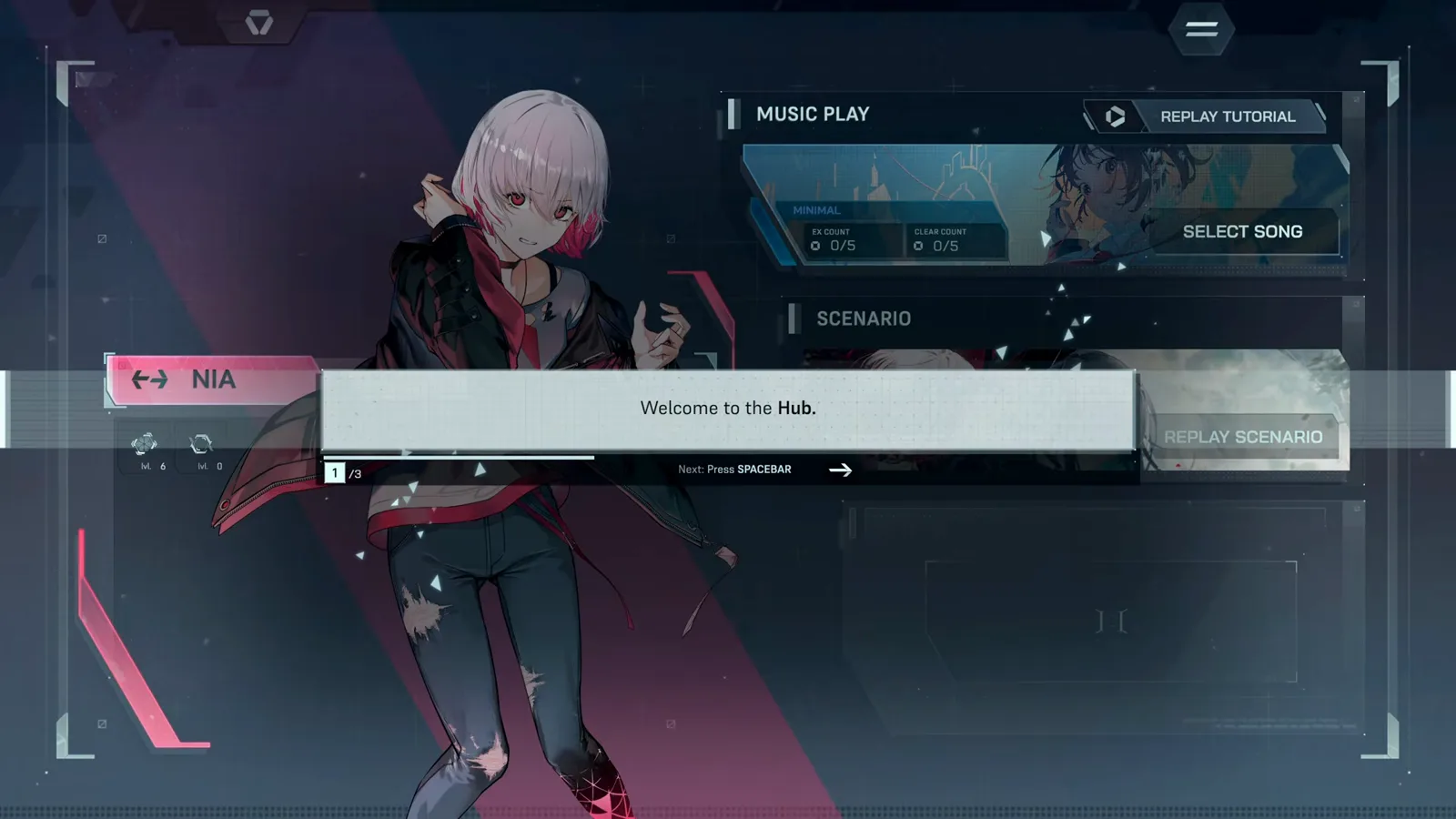
Nia runs the Hub — your home base for songs, story and loadouts. · Footage: justonegamr ↗ - 13
Meet the CONNECT loadout
Before an Encounter you assemble a five-card loadout on the CONNECT screen — the cards shown here belong to Nia and Freya. Cards modify how encounters play out; as a beginner, take the default hand and dive, then read our cards guide once the loop clicks.
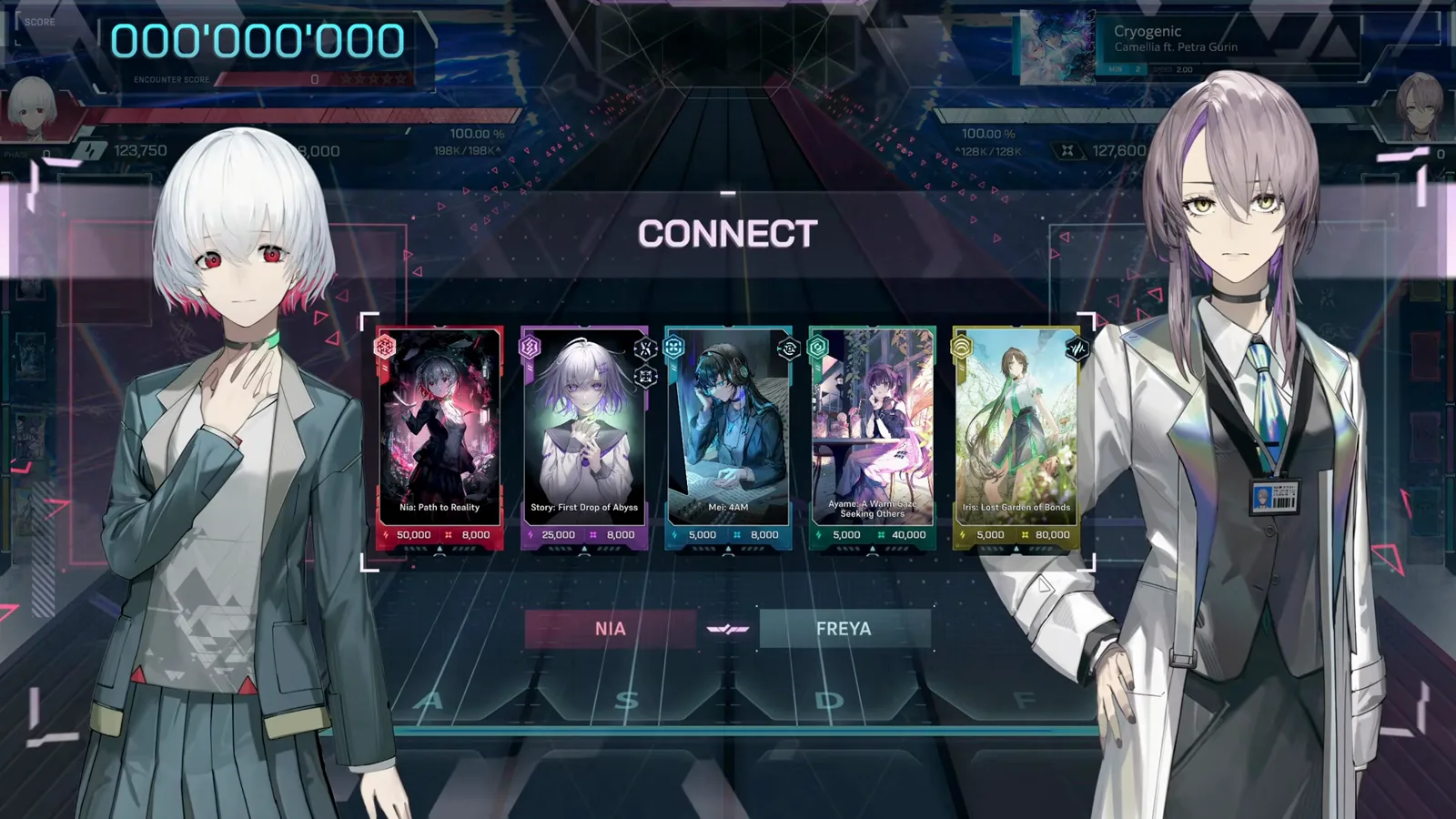
Five cards form your encounter loadout — defaults are fine for a first clear. · Footage: justonegamr ↗
FAQ
FIRST-DIVE QUESTIONSIs the In Falsus demo free?
It was. The demo left Steam on September 9, 2026, when the full game launched at $39.99 (−10% launch discount live). lowiro never officially confirmed demo progress carryover — treat demo unlocks as practice. The skills transfer regardless: start with the full game's tutorial.
What are the default controls in In Falsus?
LeftShift, A, S, D, F and Space cover the six note lanes, and the mouse steers the Cursor on the upper track. Everything is remappable in OPTIONS → CONTROLS; our controls guide covers remapping and controller setup in detail.
Do I need a controller to play In Falsus?
No. The in-game tutorial is built around keyboard plus mouse, and that is the setup most demo footage uses. Controllers work as an alternative, but learn the game on the defaults first.
What happens if my MSS HP hits zero?
The dive fails and the game offers an immediate retry — there is no permanent punishment in the demo. Misses cost 1 HP each and successful hits build it back, so a rough section is recoverable if you stabilize.
Should I pick Prioritize Scenario or Challenge Rhythm Game?
Whichever you like. The game itself states the choice only affects the initial tutorial and does not limit your game experience — story-first players get a gentler on-ramp, rhythm veterans skip straight to the charts.